
CCTV Remote Viewing Configuration
Knowledge Base › CCTV · Last reviewed September 2026 · Connixtech technical team
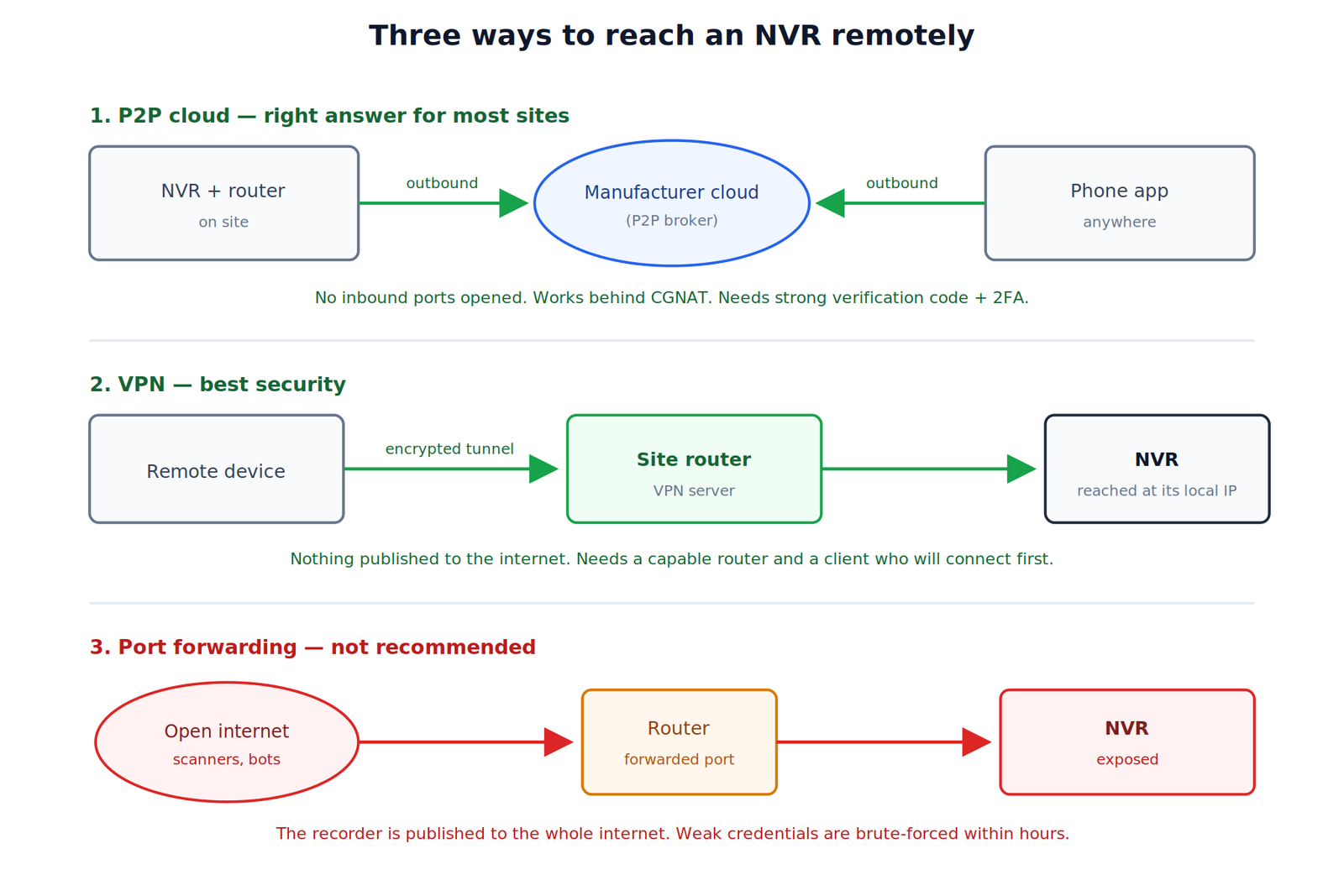
Remote viewing means reaching an NVR from outside the site network. If you have not commissioned the recorder yet, start with the NVR Setup Guide. There are three practical methods and they differ enormously in security.
Short answer: P2P cloud for most sites, VPN where the client has IT policy or higher security requirements, and do not use port forwarding.
The three methods compared
| Method | Security | Needs public IP | Best for |
|---|---|---|---|
| P2P / cloud | Good with 2FA | No | Most residential and SME |
| VPN to the site | Best | Yes, or cloud VPN | Corporate, multi-site |
| Port forwarding | Poor | Yes | Not recommended |
Why port forwarding is not recommended
Forwarding a port to a recorder publishes it to the entire internet. Recorders and cameras are scanned continuously, weak credentials are brute-forced within hours, and known firmware vulnerabilities are exploited automatically. Compromised recorders have been used at scale for botnets and for lateral movement into the business network they sit on.
If a client insists: change the default port, use a long unique password, restrict source IPs at the firewall, keep firmware current, and isolate the recorder on its own VLAN. Better — use one of the other two methods.
Method 1 — P2P cloud
P2P works by having the recorder make an outbound connection to the manufacturer’s servers. The app connects to the same servers and the two are introduced. Because both ends dial out, the firewall never needs an inbound rule — which is also why this is the only one of the three methods that survives CGNAT.
- On the recorder, enable the platform access / P2P service.
- Set a verification code — change it from the default. This is what protects the stream.
- Confirm status shows “Online”. If offline, check the recorder’s gateway and DNS, and that outbound internet is not blocked.
- Install the app: Hik-Connect (Hikvision/HiLook), DMSS (Dahua), or the manufacturer’s app for other brands.
- Create the client’s own account, not yours. The client must own the account or they cannot manage access after you leave.
- Add the device by QR code or serial number.
- Enable two-factor authentication.
- Test on mobile data with the phone off site Wi-Fi. Testing on site Wi-Fi proves nothing — it may be connecting locally.
Requirements: working outbound internet, correct DNS, and correct time. A recorder whose clock is badly wrong will often fail to establish a cloud connection.
Method 2 — VPN
A VPN puts the remote device onto the site network, so the recorder is reached at its local IP. Nothing is exposed to the internet.
- Configure the VPN server on the site router or firewall — WireGuard and OpenVPN are common, and many business routers include one
- Give the client’s device a VPN profile
- In the app, add the recorder by its local IP address
- Connect the VPN first, then open the app
This is the right answer for any site with an IT department. Trade-offs: setup complexity, a router capable of it, and a client who will actually connect the VPN before viewing. Routers: Wi-Fi Routers. Switches and PoE: PoE Switches.
CGNAT: check this before you troubleshoot anything
Under CGNAT (carrier-grade NAT), multiple customers share one public IPv4 address. The site has no public IP of its own, so port forwarding and DDNS cannot work — no matter how the router is configured.
How to test for it — two minutes
- Open the router’s status page and note the WAN IP address
- On a device on that connection, check an external “what is my IP” lookup
- If the two differ, the connection is behind CGNAT
A WAN address in the 100.64.0.0/10 range — anything from 100.64.x.x to 100.127.x.x — is a direct indicator. Addresses in 10.x, 172.16–31.x or 192.168.x on the WAN interface point the same way.
Which New Zealand connections are affected by CGNAT?
CGNAT is a provider decision, not a technology one, so the only reliable answer is to test the specific connection. That said, the pattern we see on NZ sites:
| Connection type | Public IP likely? |
|---|---|
| UFB fibre, business plan with static IP | Yes — usually a paid option |
| UFB fibre, consumer plan | Varies by retailer — test it |
| Fixed wireless / WISP | Frequently behind CGNAT |
| Satellite | Commonly behind CGNAT by default |
| Mobile broadband (4G/5G router) | Almost always behind CGNAT |
Rural sites are the ones that bite you. A farm, orchard or lifestyle block on fixed wireless or satellite is exactly the site where the client most wants remote viewing, and exactly the connection least likely to support port forwarding. Plan for P2P from the quote stage rather than discovering it on commissioning day.
Upload, not download, is your constraint. UFB fibre plans generally have enough upload for multi-camera remote viewing. Rural wireless and satellite often do not, and satellite adds latency on top. Check the actual upload figure before promising smooth live view.
Bandwidth planning
| Stream | Typical bandwidth |
|---|---|
| Sub stream, single camera | 0.5–1 Mbps |
| Main stream 4 MP H.265, single camera | ~4 Mbps |
| 4-camera multi-view on sub stream | 2–4 Mbps |
Bandwidth demand follows the stream settings you chose at commissioning, and the camera resolution you specified — see CCTV Camera Mounting and Positioning for how resolution and scene width interact. Configure apps to use the sub stream for live multi-view and switch to main stream only for single-camera detail. On a modest upload, main-stream multi-view will not work regardless of settings.
Fault-finding
| Symptom | First checks |
|---|---|
| Device offline in the app | DNS and gateway; outbound blocked; clock wrong |
| Works on site Wi-Fi, not mobile data | Connecting locally — P2P is not working |
| Live view connects then drops | Upload bandwidth exhausted; try sub stream |
| “Incorrect verification code” | Code changed on the device, or still default |
| Nothing works after an ISP change | Rules lost, or moved to CGNAT |
| Client cannot add device | Still bound to the installer’s account |
Unbind the device from your own account before you leave site. A device registered to an installer account cannot be added by the client, and this generates a support call on every job.
Handover checklist
- Account in the client’s name, with the client’s email
- Two-factor authentication enabled
- Verification code changed from default and recorded
- Device not bound to the installer’s account
- Tested from outside the site network on mobile data
- Client shown live view, playback, search and export on their own device
- Sub stream set as default for multi-view
- Firmware current
- No unnecessary ports forwarded
Planning remote access for a site? Connixtech’s technical team is available Monday–Friday, 8am–5pm NZT. Email info@connixtech.co.nz or call +64 27 284 7161.
CGNAT detection method and address ranges verified September 2026. The connection-type table reflects field experience, not published provider data — CGNAT policy varies by retailer and changes without notice. Always test the specific connection.